Why Your AI Voiceover Sounds Robotic — 9 Fixes That Make It Sound Human
Flat, monotone, comma-choppy delivery is the #1 reason viewers click away from AI-narrated videos. These 9 fixes — from SSML pauses to post-processing — turn robotic TTS into narration people actually want to listen to.
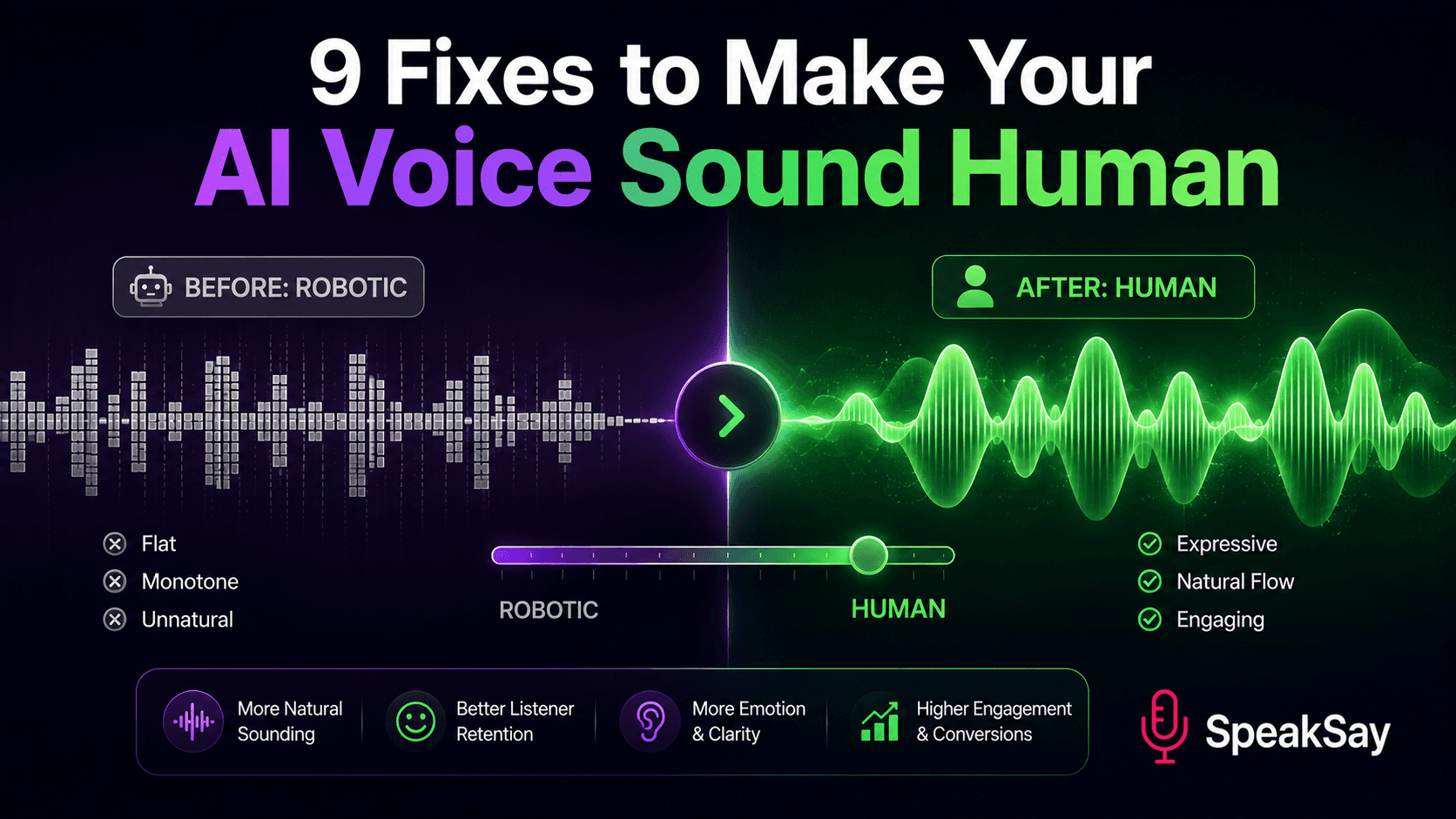
Why AI Voices Sound Robotic
Modern TTS can sound remarkably human — until you feed it text written for the eye, not the ear. Long comma-spliced sentences, no breathing room, uniform pacing, and raw output with no cleanup all push a voice back toward "robot." Fix the input and the same model suddenly sounds natural.
Fix 1: Use Periods, Not Comma Chains
Comma-heavy sentences almost always sound robotic because the engine rushes through them. Break long sentences into short, punchy ones. More periods = more natural breaths and a clearer rhythm.
Fix 2: Add SSML Pauses
Insert deliberate pauses with break tags: <break time="250ms"/> for a beat,
<break time="500ms"/> for a sentence gap, and up to 1s for a dramatic pause
between sections. Pauses at natural points — sentence ends, transitions, before a punchline — are what make
narration feel alive.
Fix 3: Control Pacing & Speed
Speed up slightly for excitement, slow down for impact. If a line feels rushed, reduce speed 5–15% and add micro pauses at clause breaks. Explainer narration usually sits best near a natural conversational pace.
Fix 4: Vary Sentence Length
Humans don't speak in identical-length sentences. Mix a long, flowing line with a short, sharp one. That variation is a huge part of what your ear reads as "real."
Fix 5: Emphasize — But Sparingly
Emphasis tags and prosody controls add intent. But if everything is emphasized, nothing stands out. Mark only the words that genuinely carry the meaning.
Fix 6: Break Up Numbers & Lists
Put numbers, comparisons, and list items on their own lines so the engine can breathe between them. Cramming data into one line is a classic robotic giveaway.
Start with a voice that's already natural
Half the battle is the source voice. SpeakSay's lifelike voices respond cleanly to pacing and SSML, so your fixes actually land. Try them on your own script free.
Try SpeakSay TTS →Fix 7: Pick the Right Voice for the Job
A neutral, clear voice suits explainers; a warmer, characterful voice suits storytelling. Forcing one voice across every format is why some videos feel "off." Browse the SpeakSay voice library and match the voice to the content, or design a custom one with Voice Remix.
Fix 8: Clean & Normalize the Audio
Even perfect narration sounds amateur if the audio is uneven or noisy. Run your output through quick post-processing:
- Noise Remover — strip hiss and hum.
- Audio Normalizer — even, consistent loudness.
- Audio Enhancer — add polish and clarity.
- Echo Remover — kill room reflections.
Fix 9: Don't Over-Process
The most common pro mistake: too many pauses, extreme pitch/speed changes, or heavy effects. Over-processing makes speech choppy and artificial. Keep every adjustment moderate — subtlety is what reads as human.
Turn robotic into broadcast-ready
Pair SpeakSay's natural voices with the free audio toolkit and ship narration viewers stay for. Start free, upgrade when you scale.
Explore SpeakSay →Frequently Asked Questions
Why does my AI voiceover sound flat and robotic?Usually the script, not the model: long comma chains, no pauses, uniform pacing, and unprocessed audio. Fix those and the same voice sounds natural.
What are SSML breaks?Tags like <break time="500ms"/> that insert deliberate pauses, giving narration natural rhythm and breathing room.
Vary sentence length, add pauses before key moments, use light emphasis on meaningful words, and choose a voice suited to the tone.
Do I need to process the audio after generating?A quick denoise and normalize makes a big difference. SpeakSay's free tools handle both in seconds.