Let Shoppers Hear the Product Page: How Small Online Stores Can Add a "Listen" Audio Option to Product Descriptions (Accessibility and Holiday Conversion, 2026)
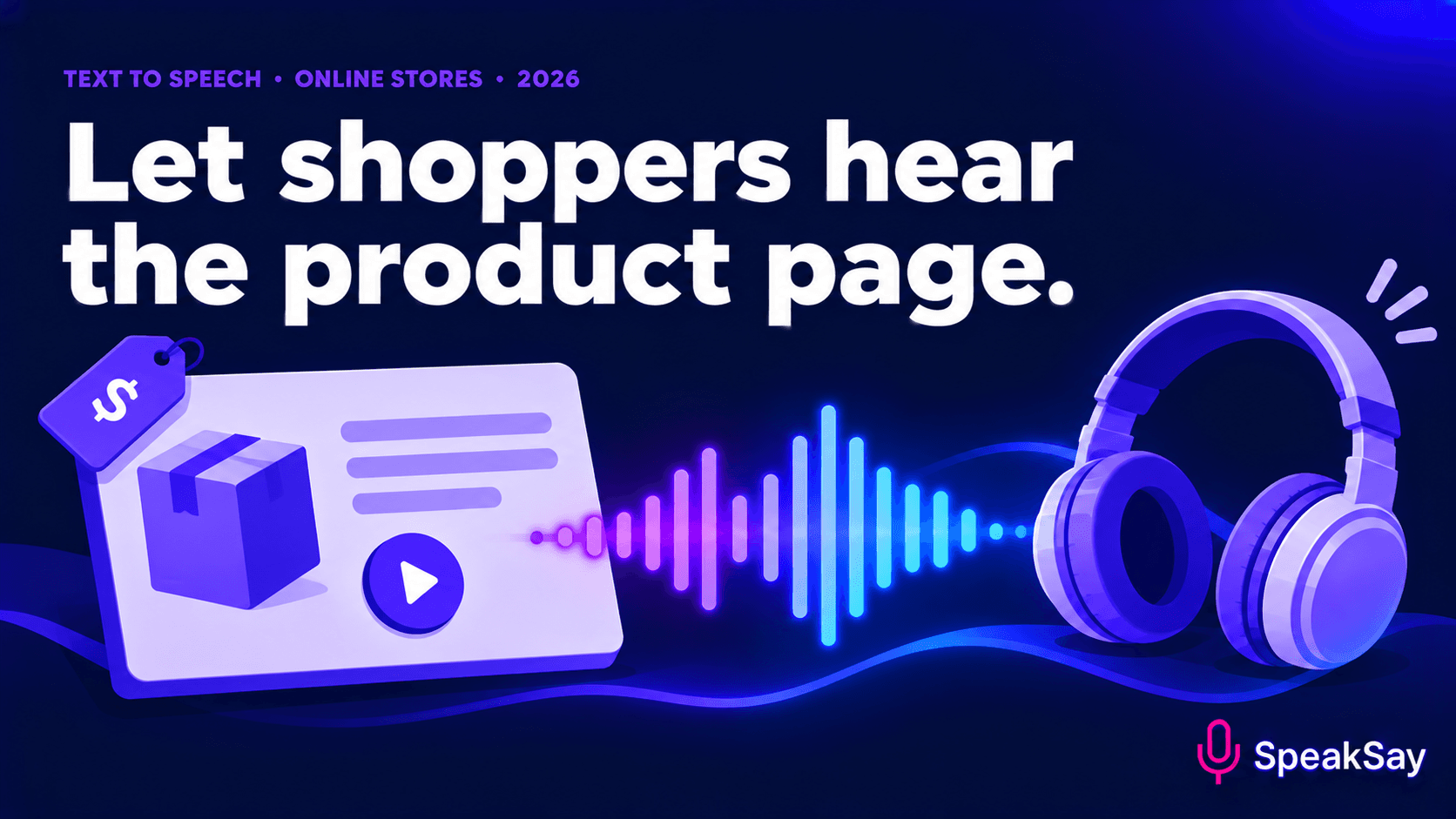
Most product descriptions are written to be skimmed, which leaves out shoppers who cannot read a screen easily or who are busy. This guide shows how a small online store can turn its best-selling product descriptions into short audio clips, add a simple listen option, and keep the text as the source of truth.
1) Why audio on a product page
Text is still the foundation of a product page, and it should stay that way. Search engines read it, screen readers read it, and shoppers can scan it. Audio is an extra, not a replacement. It helps in three situations:
- Shoppers who find reading a screen hard. This includes people with low vision, dyslexia or tired eyes, and anyone reading in poor light.
- Shoppers with their hands busy. They want to hear what a product does while they cook, commute or hold a child.
- Shoppers who skip long descriptions. A 30-second spoken summary can cover what a scroll of text does not.
We cannot promise that audio raises your conversion rate. Test it on a handful of products and look at your own numbers before rolling it out.
2) Which products to start with
Do not voice your whole catalogue on day one. Pick the products where a shopper most needs to understand something before buying:
- Your five best sellers, because any improvement is multiplied.
- Products with sizing, fit or compatibility questions.
- Products where the key information is buried in a long description.
- Gift items that will see a surge from now to December.
Keep a simple sheet: product name, link, date voiced, date the text last changed. You will need it when prices or details change.
3) Write the audio script, don't paste the page
A description full of bullet points, symbols and sizes sounds terrible read straight out. Write a short script of its own, 80 to 120 words, in this order:
- What it is and who it is for, in one sentence.
- The two or three details that decide the purchase.
- What is in the box, or what to check before ordering.
- One line that points to the page for full details, sizing and delivery.
Leave prices out of the audio unless you will re-record whenever they change. Our guide to numbers, dates and units in text-to-speech shows how to write dimensions and weights so they are spoken correctly, for example "twelve centimetres" rather than "12cm".
Try one product in a minute
Paste a short script, choose a clear voice and hear your product in seconds.
4) Produce and check the audio
- Pick one voice for the whole store from the SpeakSay voice library. Consistency matters more than variety.
- Generate the clip and listen to all of it, with the script in front of you.
- Fix product names, brand names and unusual words. Our pronunciation guide covers the usual fixes.
- Check the length. Under 45 seconds is a good target for a product page.
- Export the file and name it after the product, for example
blue-ceramic-mug-listen.mp3.
| Check | Pass looks like |
|---|---|
| Product name | Spoken the way you say it in store |
| Numbers and sizes | Spoken as words and units, not symbols |
| Claims | Match the text on the page exactly |
| Length | Under 45 seconds |
| Ending | Points to the page for full details |
5) Where the Listen option goes
Put a plain "Listen to this description" control directly under the product title or above the description text. Keep it labelled in words, not just an icon. Most store platforms let you add an audio element to a product page through a custom block or a small theme edit; if your platform does not, add a link to the audio file as a fallback.
For printed inserts, packaging or market stalls, a QR code to the audio works too. Our guide on audio instructions behind a QR code shows the same approach for assembly steps.
6) Rules: accessibility, claims and autoplay
- Never autoplay. Sound that starts on its own is a quick way to lose a shopper. The listener presses play.
- Keep the text. Audio does not replace alt text, headings or readable text. Accessibility rules in some regions, including the EU's accessibility requirements for online shops, are about the whole shopping experience, and audio alone does not make a store compliant. Check your obligations with a qualified adviser; this is not legal advice.
- Match the page. If a claim is not on the page, it should not be in the audio. Update the audio when the page changes.
- Label it. A short note such as "Audio generated with text to speech" is honest and costs nothing.
- Offer controls. Use a player with pause and a speed control, so listeners can slow down or speed up.
7) A one-week plan before the holiday rush
- Day 1: pick five products and write their scripts.
- Day 2: generate and check the audio.
- Day 3: add the Listen option to those five pages.
- Day 4: test on a phone, with and without headphones.
- Days 5 to 7: watch time on page and add-to-cart on those pages against the others, then decide whether to extend.
If it helps, extend to the rest of your gift range. If it doesn't, you have lost a week, not a catalogue.
Voice a whole catalogue without per-clip surprises
If you voice many products, a plan with a clear allowance is easier to budget than per-clip pricing.
8) FAQ
Does an audio option make my store accessible?No. It is a helpful extra. Accessibility depends on the whole store, including text, structure, contrast and keyboard use. Seek professional advice for your region.
Will audio help my search ranking?We can't promise it will. The text on the page still does the ranking work. Audio is for shoppers.
How long should a product audio clip be?Aim for under 45 seconds. Longer clips are rarely finished.
Do I need to re-record when the product changes?Yes, if the change affects anything the audio says. Keep a sheet of voiced products and the date their text last changed.