Nobody Reads the Assembly Manual: How Small E-commerce Sellers Can Add a QR Code Audio Walkthrough With Text to Speech (2026)
Printed manuals are small, skipped or badly translated. This guide shows a small seller how to turn assembly and setup steps into a short audio walkthrough with text to speech, put it behind a QR code on the insert, and keep safety warnings where they belong.
1) Why printed manuals get skipped
Buyers open the box with their hands full. They are holding a panel, a screwdriver and a bag of fixings, not a sheet of paper. Reading a diagram means putting everything down, then picking it all up again and finding their place.
Listening works better for that moment. A voice can say "pick up the long panel with the three holes on one edge" while the buyer is already holding it. They do not need to look away from the work.
We cannot promise audio will cut your returns or support emails. Some sellers will see a drop, others will not. What you can do is test it on one product and watch your own numbers.
2) One rule: audio adds to the manual, it does not replace it
Safety warnings, legal notices, age labels and anything your product category requires on paper stay in print. Audio is an extra way to follow the steps, not a way to move required information out of the box.
Product rules differ by country and category. If you sell electrical goods, toys, anything for children or anything with a heat or moving-parts hazard, check the requirements for your market, and do not assume a QR code satisfies them. This guide is not legal advice.
3) What to put in the audio
Do not read the whole manual. Pick the steps people actually get stuck on.
| Part of the manual | In the audio? | Why |
|---|---|---|
| Parts check ("you should have") | Yes, short | Buyers count parts before starting; a spoken list lets them tick as they go. |
| Assembly or setup steps | Yes, the main part | This is where the questions come from. |
| Common mistakes | Yes | Use your own support emails to find them. |
| Safety warnings | Mention, then point to the printed sheet | The printed warning is the official one. |
| Warranty and legal text | No | Poor fit for audio; keep it in print and on your page. |
Your support inbox is the best source. List the five questions you answer most. Those five become the first audio, ahead of anything else.
4) Write the steps for the ear
Instructions that work on paper often fail when spoken. A diagram shows "Part C into slot B." A voice has to describe it.
- One action per sentence. "Take the long panel. Turn it so the three holes face you."
- Name parts the way the buyer sees them. Say "the long panel with three holes", not "panel C", unless the part is labelled C in the box.
- Give the step number first. "Step four." Then the action.
- Add a pause cue. "Take your time. Say 'next' to yourself when this is done." Buyers will pause the audio or scrub back.
- Write numbers and units out. "Four screws, thirty millimetres long." Our guide to numbers, dates and units for text to speech covers the common slips.
- Check product and brand names. Add phonetic spellings where needed. See pronunciation fixes for names and acronyms.
Read each step aloud as if you were standing next to the buyer. If you stumble, the voice will too.
Turn your steps into audio
Paste your script into SpeakSay text to speech, pick a clear voice and download a file you can put on a page.
5) Build the audio
- Split by section. One file for the parts check, one for steps one to five, one for steps six to ten, and so on. Short files are easier to find in a hurry and easier to fix later.
- Pick one clear voice from the SpeakSay voice library. Calm, even and unhurried suits instructions. Avoid voices that sound excited about a screw.
- Render and listen with the product in front of you, following every step as a buyer would. Fix any step that leaves you guessing.
- Keep volume even across files. The free audio normalizer helps.
- Save a text version of each script. It doubles as captions and a transcript on the page.
When the product changes, edit the text and render again. You do not need to book a recording session each time a supplier swaps a screw.
6) Add the QR code and the page behind it
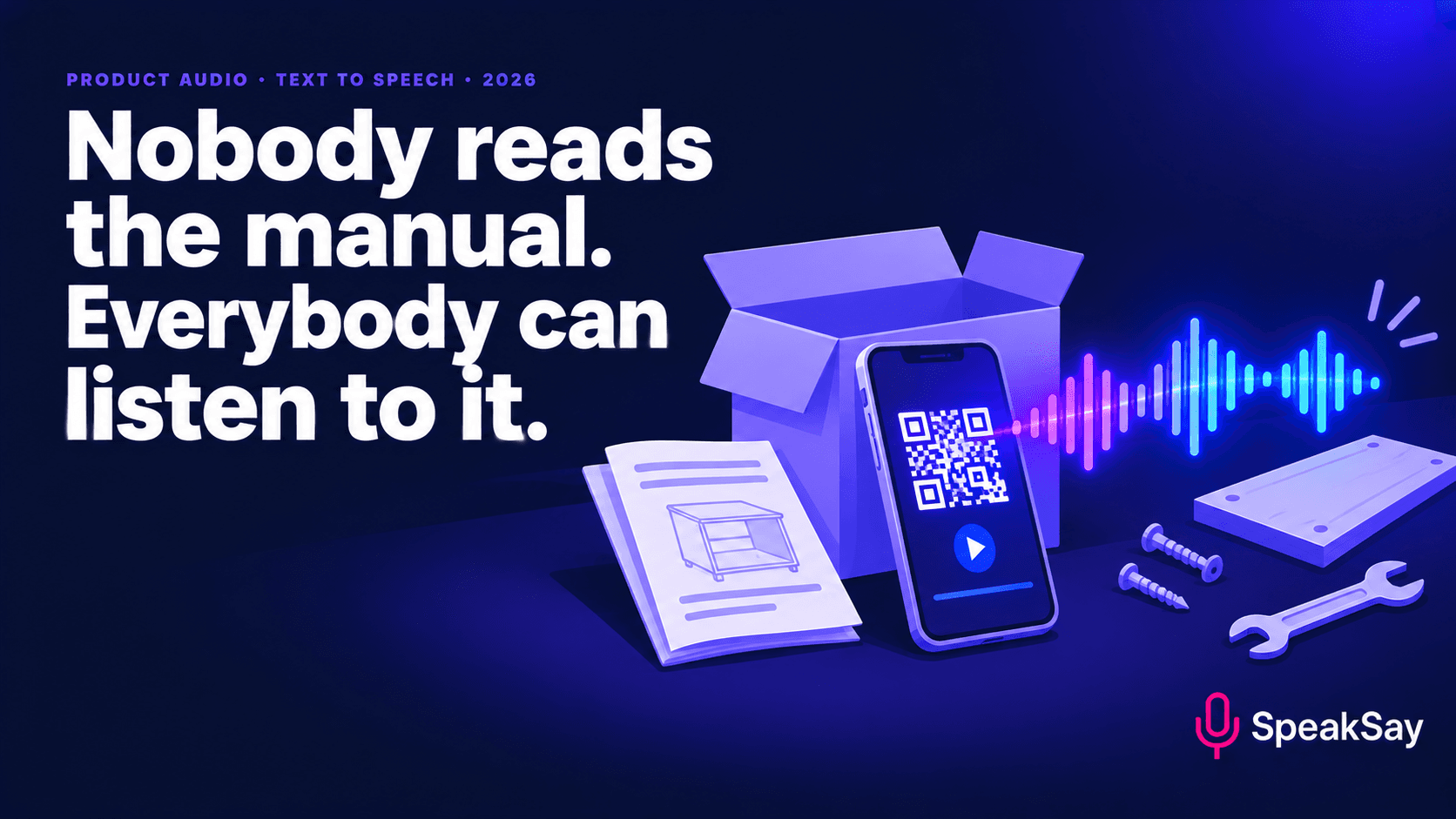
Do not point the QR code straight at an audio file. Point it at a simple page for that product. The page can show the audio players, the text steps and a link to the printed warnings, and you can change it later without reprinting anything.
- One page per product, with a short, stable address you control.
- Put the QR code on the insert and the box, with a plain line: "Scan to hear the steps."
- Test it on a few phones and in poor light before you print thousands of inserts.
- Do not use a link you cannot keep. A QR code printed on a thousand boxes is only as good as the address behind it.
For another take on QR codes and audio guides, see our post on audio house manuals behind a QR code.
7) Languages and accessibility
Printed manuals in many languages become tiny. Audio pages can offer a language choice without making the insert bigger. If you sell in other countries, have a fluent speaker check each translated script before it goes live. Machine translation can get a step wrong in a way that matters.
Audio also helps buyers with low vision or reading difficulties. Provide the text version alongside it so people can choose.
8) Check whether it works
- Tag support emails that are "how do I" questions for a month before launch.
- Launch audio on one product only.
- Compare the number of "how do I" emails for that product with the month before. Ignore any change that is smaller than normal month-to-month variation.
- Read the questions that still come in. They show which step needs a better script.
Be honest with yourself. If nobody scans the code, change the line on the insert before you change the audio.
Cover every product without a recording budget
Plans from SpeakSay give you enough characters to narrate a whole catalogue of instructions, and the lifetime plan removes the monthly bill.
9) FAQ
Can I replace my printed manual with a QR code audio walkthrough?We do not recommend it. Required safety and legal information normally has to be on or in the product. Use audio as an extra, and check the rules for your market.
How long should the audio be?Short sections work best. Many buyers want to jump to the step they are on, so split long instructions into files of a few minutes each.
Do I need a video as well?No. Audio is cheaper to make and easier to follow while your hands are busy. Some sellers add video for tricky steps, but audio is a good place to start.
What if my product changes after printing?Update the page behind the QR code. That is why the code should point at a page you control, not at a file.
Is a text to speech voice good enough for instructions?Often yes. Instructions need clarity more than personality. Listen to the full script once with the product in hand, and fix any step that confuses you.