Read the Menu to Me: How a Restaurant Can Offer an Audio Menu for Blind and Low-Vision Guests With Text to Speech (2026)
Small type, low contrast and PDF menus that screen readers cannot parse leave some guests asking staff to recite the menu. This guide shows how to write a menu for the ear, turn it into audio with text to speech, and keep it current as the specials change.
1) Why an audio menu, and what it does not replace
Many guests with low vision can read a menu if the type is large and the contrast is strong, and most cannot read a menu in dim light on a phone-sized PDF. Others cannot read it at all. In all of these cases the usual fix is a server standing at the table reading every dish aloud, which takes time, varies from person to person, and often leaves out prices and allergens.
An audio menu is a consistent version that the guest can replay, pause and skip at their own pace. It is an addition, not a replacement. Keep a large-print copy, keep staff trained to describe dishes, and make sure your digital menu works with screen readers. We are not accessibility lawyers: check your local rules and ask a local sight-loss charity or access consultant how they apply to you.
2) A real example: The Huxley in Edinburgh
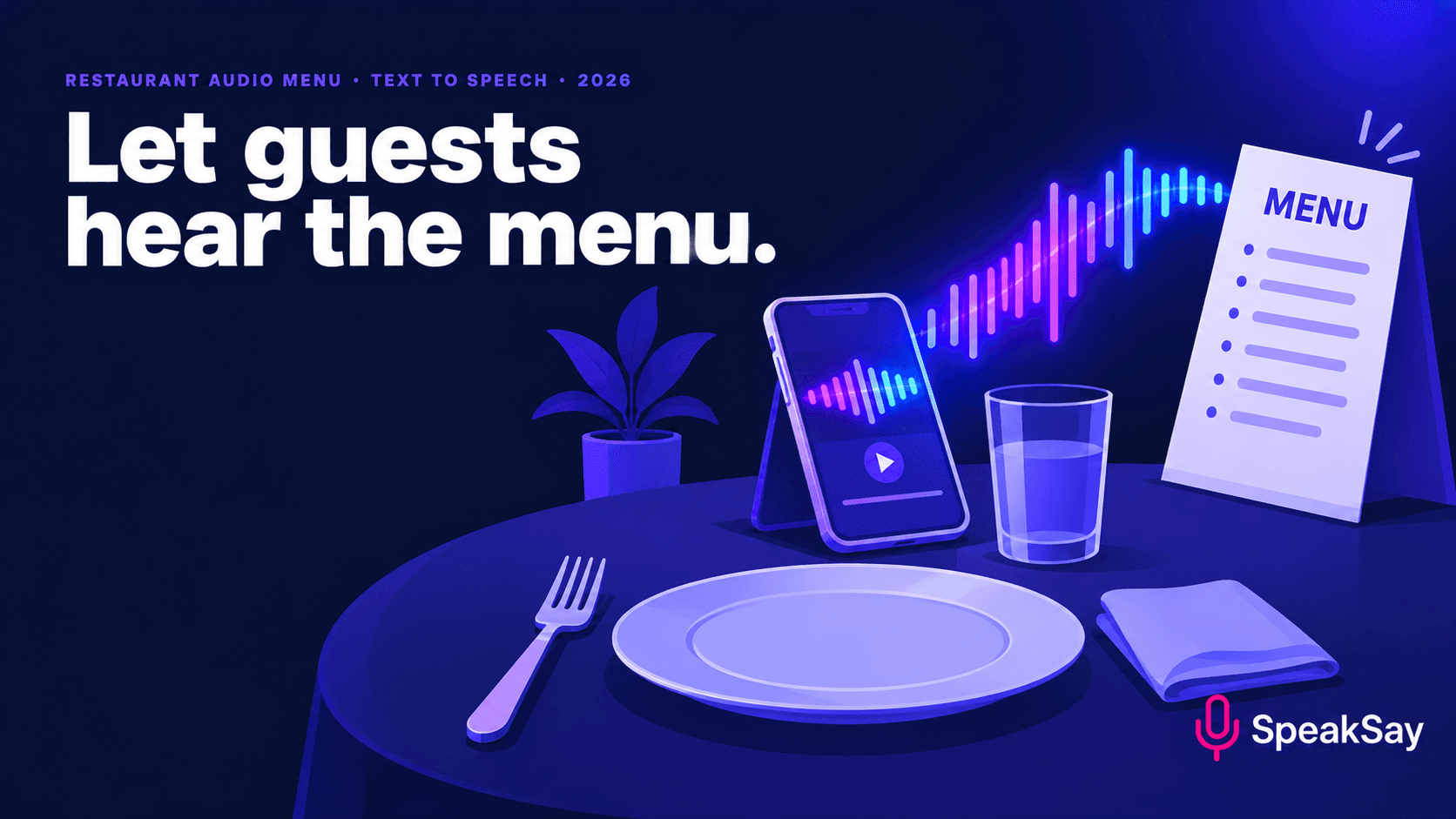
This is not a new idea. In 2019 the Scotsman reported that The Huxley, an Edinburgh restaurant owned by Signature Pubs, launched an audio menu developed with RNIB Scotland. Guests could listen to the options on an iPad or on their own smartphone instead of reading them. The report described the aim plainly: sight loss makes small, decorative or low-contrast menus hard to read.
Three lessons carry over. Involve people with sight loss in the design, make the audio playable on the guest's own phone, and keep it short enough to use before the server returns to the table. Text to speech makes the third point much easier than hiring a voice actor, because you can change a line in minutes.
3) Write the menu for the ear
A printed menu is scannable: the eye jumps between headings and prices. Audio is linear, so the order and length of every line matters.
- Open with the structure. "This menu has four sections: starters, mains, desserts and drinks. Say 'skip' on the page to jump ahead." Keep it to one sentence.
- One dish, one short paragraph. Name first, then the main ingredients and how it is cooked, then the price. Cut any adjective that is only decoration.
- Put allergens in the same place every time. For example, after the description: "Contains gluten and milk." A fixed pattern lets listeners tune it out when it does not apply and catch it when it does.
- Split long sections into separate files. Starters, mains and desserts as three tracks let guests jump straight to the section they want.
- Close with how to get help. "To ask a question, tell any member of staff." That one line prevents the menu from feeling like a closed system.
Turn your menu into audio in minutes
Paste the script, pick a calm voice and listen back before a guest does.
4) Dish names, allergens and prices
Menus are full of words that text to speech guesses wrong: borrowed dish names, brand names, abbreviations and prices. Fix them in the script before you generate the audio.
| On the printed menu | Write in the script |
|---|---|
| Gnocchi, brown butter & sage | Gnocchi, which is a small potato dumpling, with brown butter and sage |
| GF | Gluten free |
| £14.5 | Fourteen pounds fifty |
| (V) | Vegetarian |
| Chef's pick | Chef's recommendation |
For dish names that are still mispronounced, spell them phonetically in the script. Our pronunciation fixes guide shows how, and the numbers and prices normalization pass covers the money and units. Have someone who knows the dishes listen once, start to finish.
Allergen wording is the one place to be conservative. Do not let the audio say "no allergens" or "safe for" anything. Use the same wording your kitchen uses on the printed allergen sheet, and tell guests with serious allergies to speak to staff.
5) Make the audio
- Choose one voice for the whole menu. A calm, clear, neutral voice works better than a "restaurant" character. Browse the SpeakSay voices and listen to the same two dishes in three of them.
- Generate section by section, not as one long file.
- Set a steady pace. Slightly slower than conversation is usually right, but let the listener control speed on their own phone.
- Even out the volume. A free audio normalizer keeps tracks consistent so guests do not turn the phone up and down between sections.
- Listen to it in the restaurant, at the table, with the usual background noise.
6) Make it easy to find
An audio menu that nobody can find is the same as no audio menu. Think about the full path a guest follows.
- Before arrival: put the audio on a plain web page linked from your accessibility or menu page, with the sections as clearly labelled links rather than a single hidden player.
- At the door: tell hosts to mention it when they seat anyone who asks for help with the menu.
- At the table: a QR code works only if the guest can find and scan it. Add a short raised or large-print label next to it saying "Audio menu", and offer a short web address as a backup.
- On the phone: make sure the page works with the phone's own screen reader, since many guests already use one.
Ask a few guests with sight loss to try the whole path once and tell you where it breaks.
7) Keep the specials current
The big advantage of text to speech is that changes are cheap. Keep the main menu in three section tracks, and record the specials as a separate short track that you replace as often as you need.
- Update the specials script on the day, listen once, publish.
- Date the track in the file name, and remove old ones.
- When prices change, update the script and regenerate the section. Do not patch a single number in the audio.
- Keep a log of the last time each track was checked against the printed menu.
Update the audio as often as the menu changes
Plans for small venues and unlimited use are on the pricing page, with a one-time option on the lifetime page.
8) FAQ
Is an audio menu required by law?That depends on where you operate, and we cannot give legal advice. Ask a local access consultant or a sight-loss charity what applies to you, and treat an audio menu as one of several ways to be accessible.
Should the audio list allergens?Use the same allergen wording as your printed allergen sheet, in the same place on every dish, and always tell guests with serious allergies to speak to staff. Never let the audio claim a dish is safe.
Do I need a QR code?No. A QR code is convenient for some guests and a barrier for others. Offer a short web address, a link from your accessibility page and a staff-read option as well.
How long should an audio menu be?Aim for sections of one to three minutes each. If a section runs longer, split it, so guests can jump to the part they want.
Can I use my own voice instead?Yes. If you want the owner's or head chef's voice on the audio, use a clone of that person's own voice, with their consent, and keep the allergen lines on a plain voice.