Send the Deck Without the Meeting: How to Narrate a Sales Proposal or Client Presentation in Your Own Cloned Voice So It Gets Heard, Not Skimmed (2026)
A proposal sent as slides is skimmed in ninety seconds and forwarded without context. This guide shows consultants, freelancers and sales teams how to turn a deck into a narrated walkthrough in their own cloned voice, with a script method, an edit workflow and a consent checklist.
1. Why a narrated deck beats a silent one
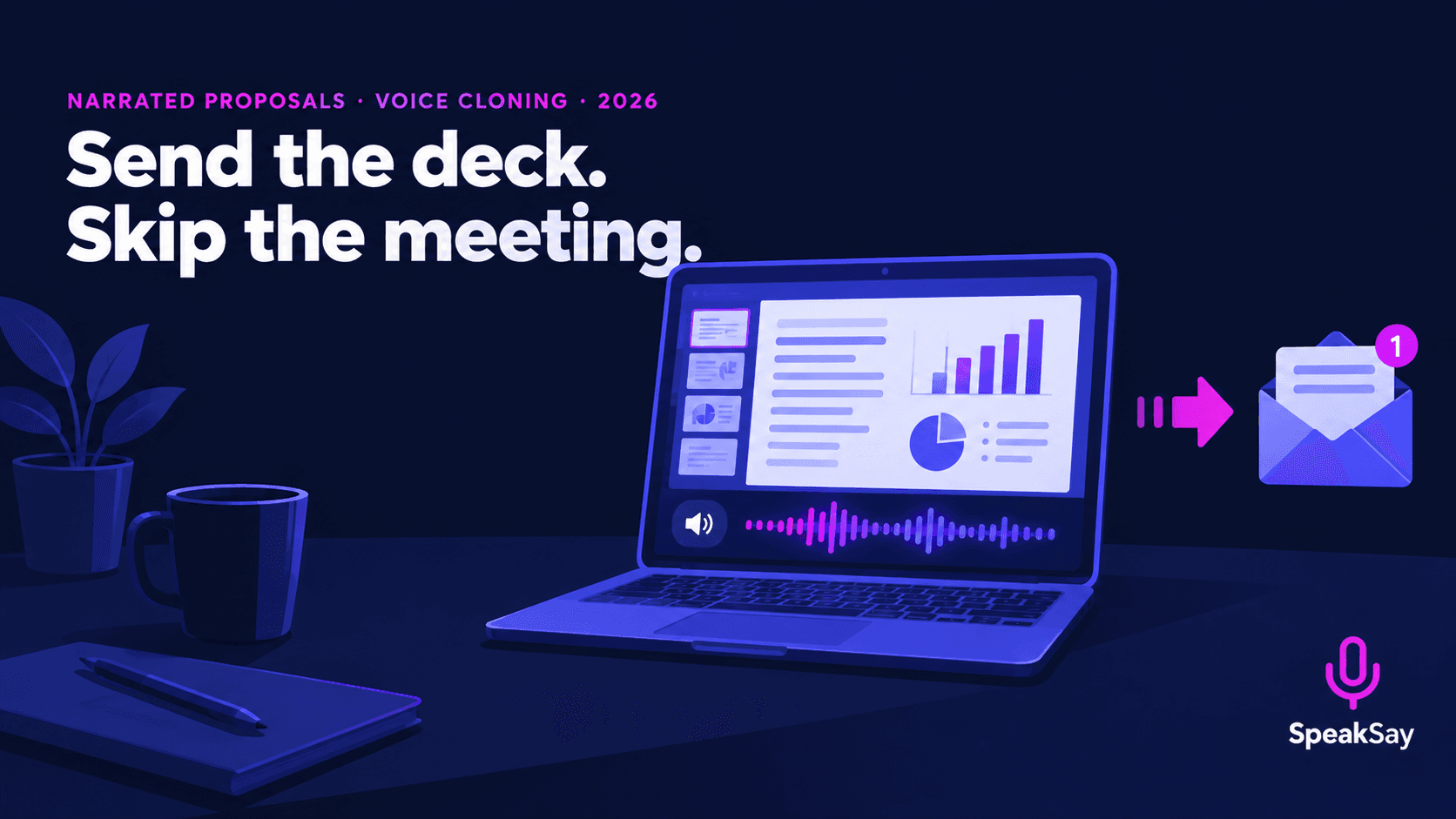
A slide holds a headline and a few numbers. The reason behind them lives in your head, and it is usually the reason the buyer decides. A narrated walkthrough puts that reasoning in front of the person who was not in the meeting, in the order you intended.
- It reaches the colleague who only sees the forwarded email.
- It works across time zones, with no meeting to schedule.
- It keeps your tone, which a text-only proposal can't.
It does not replace a conversation for a large or complicated deal. It makes the first pass of that conversation better informed.
2. Write the script slide by slide
Speaking to a slide is different from reading it. Write the script as speech.
- One idea per slide, 20 to 45 seconds each. If a slide needs two minutes, it is two slides.
- Open with the point, not "this slide shows". For example: "The main reason this costs less than your current set-up is the second line."
- Say numbers in words, and keep them few. Our guide on how numbers, dates and prices are read aloud shows how to avoid mispronounced figures.
- Name the buyer's problem in their own words, using what they told you.
- End with one next step and a date.
Keep a small respelling list for the buyer's name, company and product names. The pronunciation guide explains how to fix them once.
3. Set up your voice
A voice clone lets you generate the narration from your script in a voice based on your own. You provide a clean recording of yourself, with your agreement, and you use the result for your own work.
- Record in a quiet room with a consistent distance from the microphone.
- Read in the way you present, not in a stiff reading voice, because the clone follows the recording.
- Use only your own voice. Don't clone a colleague or a client without their clear written permission. Our consent recording script shows a clean way to document it.
- Check what the sample captures and misses. See what a 30-second sample can and can't capture.
Narrate your next proposal in your own voice
Create a voice clone from your own recording and turn a script into a walkthrough you can update in minutes.
4. Generate, check and attach
- Generate one audio clip per slide, named by slide number.
- Listen to every clip for names, prices and dates. These are the errors a buyer notices.
- Even out the volume with the free audio normalizer.
- Attach the audio to each slide, or export a video of the deck with the audio, depending on your presentation software. Check the current instructions for your own software, as steps change between versions.
- Add a short text summary to the email, for people who will read first and listen later.
5. Update one slide without redoing the deck
This is where narration in a cloned voice saves most time. Because each slide has its own script and its own clip, a price change, a new date or a corrected figure is a three-step fix.
- Edit the script for that slide.
- Generate a new clip.
- Replace the audio on that slide and re-export.
Keep a version number in the file name and a single line in the script noting what changed. If a client has an older version, you will know which one it was.
6. Be honest about how it was made
- Add a line to the email: "I've recorded this walkthrough using a voice generated from my own voice, so I can keep it up to date."
- Don't use the clone to say things you have not said or would not say.
- Don't use the clone to imply a live conversation, such as "as I'm saying now".
- For regulated sectors, check whether your compliance rules on recorded communications apply to generated audio.
If you are planning to use your voice in other settings, such as courses or video, the guide to cloning your voice or using a stock AI voice helps you decide.
7. Deliver it so people play it
- Put the length in the subject line or first sentence: "6-minute walkthrough".
- Tell them which slide to jump to if they only have time for one.
- Host the file somewhere that plays in a browser, so the buyer doesn't download anything.
- Offer a call to talk through questions after they have listened.
8. FAQ
How do I narrate a PowerPoint without recording myself?Write a script for each slide, generate the audio in a voice based on your own recording, then attach each clip to its slide or export the deck as a video with the audio.
Can I update one slide later?Yes. Edit that slide's script, generate a new clip and replace the audio on that slide. You don't need to redo the others.
Do I need to tell clients it's a cloned voice?It is good practice to say so in your email. It builds trust and avoids confusion if they later hear you in person.
Is it safe to clone a colleague's voice for a shared deck?Only with their clear written permission. Otherwise use your own voice or a stock voice.
How long should a narrated proposal be?Aim for five to eight minutes. Longer decks are better split into a short summary walkthrough and a detailed appendix.